Getting your images right can make the difference between “scroll past” and “book now.” Here’s what you need to know.
High-Res vs Low-Res
- High-resolution (high-res) images look crisp on screens and in print. They’re usually over 1 MB in file size.
- Low-resolution (low-res) images may look fine on your phone but appear blurry or pixelated online or in print.
Rule of thumb: when in doubt, use high-res.
What DPI actually means
DPI = dots per inch. Think of it as image density.
- 72 DPI → perfect for web and social media. Fast to load, still looks good on phones and computers.
- 300 DPI → needed for print materials (posters, brochures, flyers). Higher DPI = sharper print.
For most Bundaberg Region online listings, 72 DPI is ideal. Don’t worry about converting it unless you’re printing.
Landscape vs Portrait
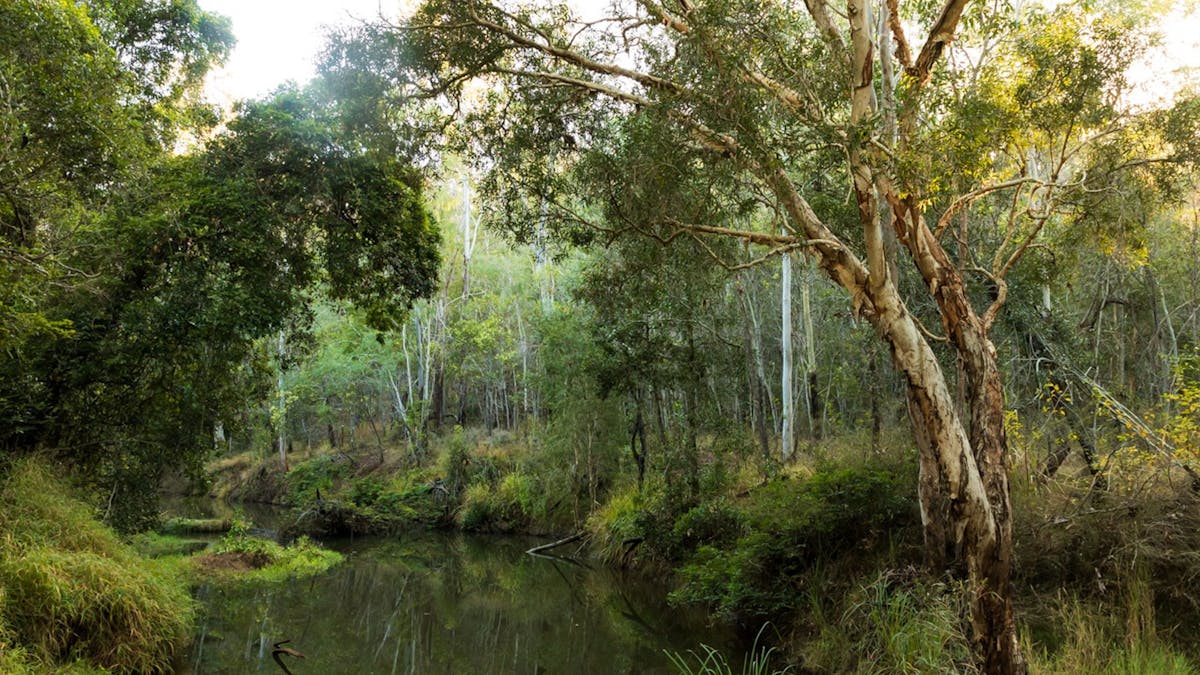
- Landscape / wide images → best for websites, hero banners, and ATDW listings
- Portrait / tall images → best for Instagram Stories, social media posts, and mobile-friendly vertical feeds
Capture both if possible – one shot can often work in both formats.
How to check image size
On Windows:
- Right-click → Properties → Details → look at Dimensions (pixels) and File size (MB)
On Mac:
- Right-click → Get Info → check Dimensions and File size
Most platforms will also show recommended sizes when uploading, e.g., ATDW listings might suggest 1200px wide or larger.
Quick tips
- Bigger is generally better (but don’t overdo it – very large files can slow uploads)
- Keep originals – resize copies for social media or web
- Name your files clearly (e.g., “RumExperience_Landscape.jpg”)
Bottom line: high-res, wide for web, tall for social, and know your file size – that’s all you need to make your business look good online.